How Sijill works
Four short parts: for students, teachers, institutes and parents. Sign in first; each step then opens the screen that does it.
Read, note, memorise and ask, all from the text itself.
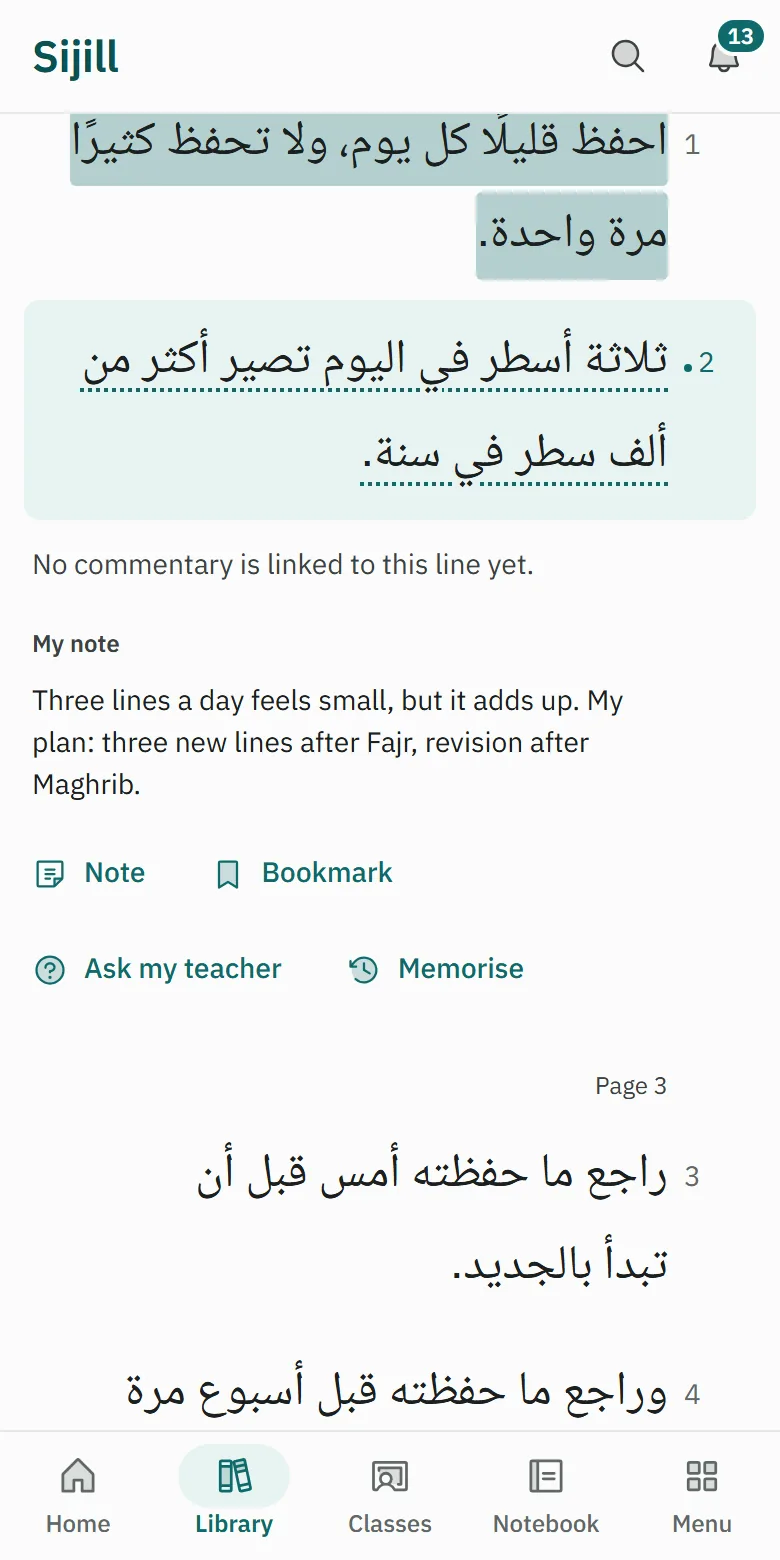
Find a book and read it line by line
Open the Library, choose a text, and read it in numbered lines.
Open a line and take a note
Tap any line, then choose Note. The note stays tied to that line.
Memorise, then revise every day
Choose Memorise on a line, and Revise brings it back on the right day.
Join a class with a code
Enter the short code your teacher shared, and the class appears under Classes.
More a student can do
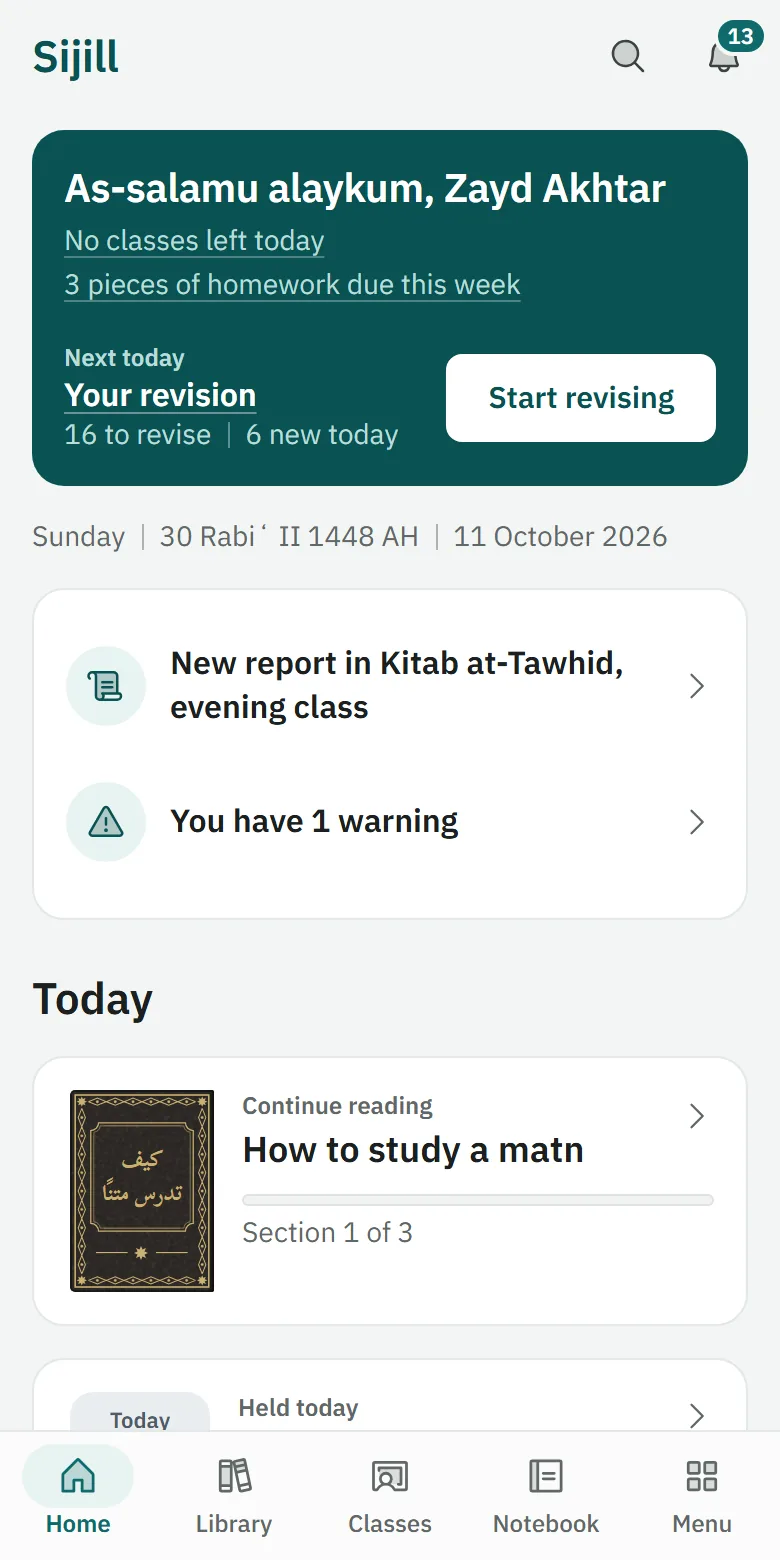
- Ask your teacherOpen a line and choose Ask my teacher, or write a question here and choose who it goes to; only the teachers you choose see it unless you share it.
- Pay a feeOpen Me, then My payments, choose the fee, pay the way your teacher explains, and tap I paid; the receipt comes once they confirm.
- Follow a pageIn Discover, open a teacher's or an institute's page and tap Follow; its posts and events then show in Following.
- Sign up for an eventOpen an event in Following or on a page and tap Sign up; it then waits for you in My events.
- Print a textOpen a book and choose Print or save as PDF, for the whole text or one section.
Run your classes in one place. Starting a class is free.
Create a class
Give the class a name and its book, and you get a short join code to send to your students.
Log sessions and recordings
After each lesson, write what was covered, and add a recording or a YouTube link if you have one.
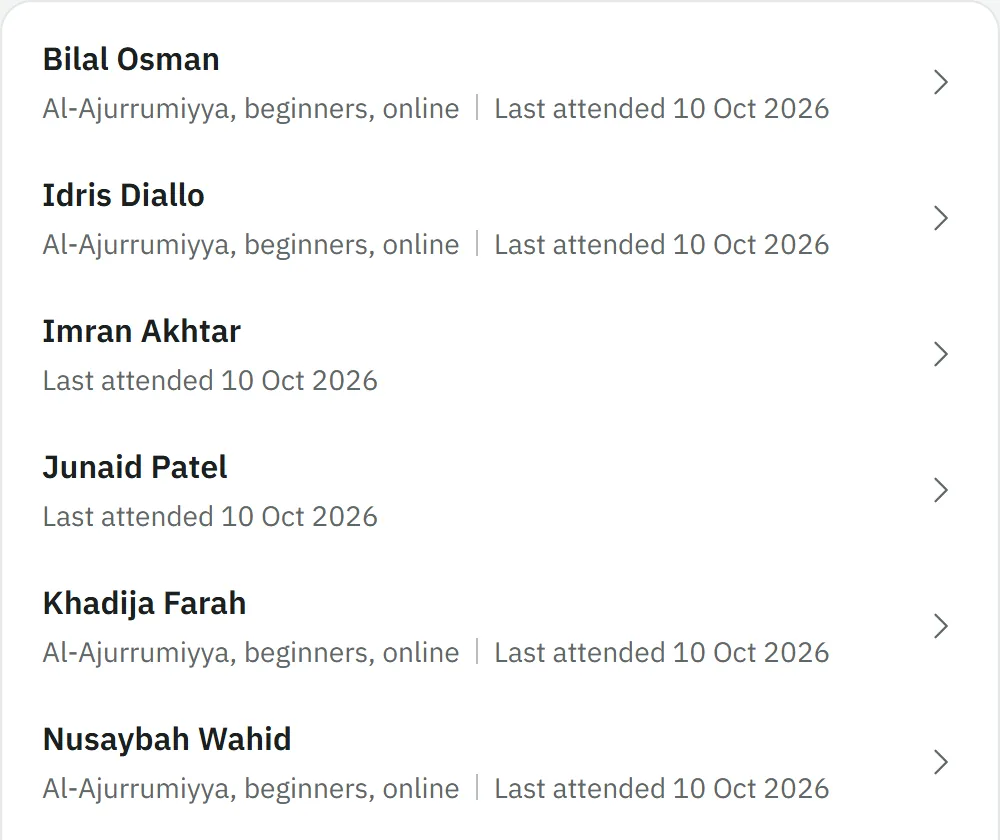
See every student's progress
One list of every student in your classes, with their progress, their homework and their last mark.
Set homework and mark it
Read what each student hands in and write a line back with the mark.
More a teacher can do
- Say “I teach”Tell Sijill you teach and the teaching tools open, next to your own studies.
- Take attendanceOpen the class and choose Attendance to mark who came, in one list.
- Set quizzesOpen the class and choose Quizzes to set a quiz or an exam; exam results reach students when you release them.
- Give certificates and ijazasOpen a student in your class and issue a certificate; anyone with its code can check it. An ijaza needs your account verified first.
- Keep your student listYour students shows the students of your own classes and anyone who enquired, with private notes and follow-ups.
- Set fees and confirm paymentsIn Fees, set your prices and how to pay you; when a student says they paid, confirm it and Sijill writes the receipt.
- Turn on remindersIn Reminders, switch on the ones you want, such as a class reminder or a note about an unpaid fee. They arrive as notices inside Sijill, and all start switched off.
- Post on the boardOnce you are verified, post a course or a dawra; an administrator checks it before it shows.
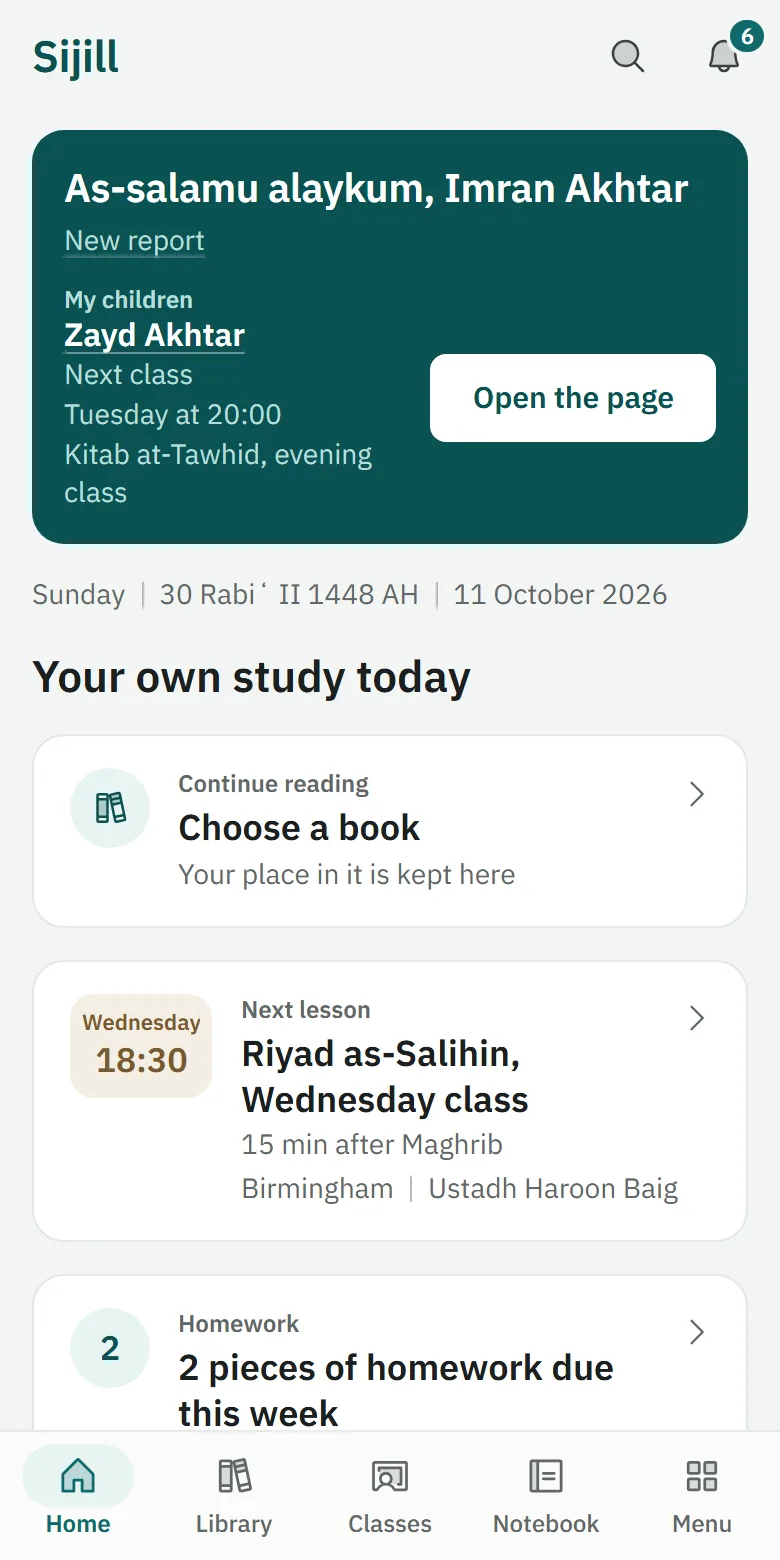
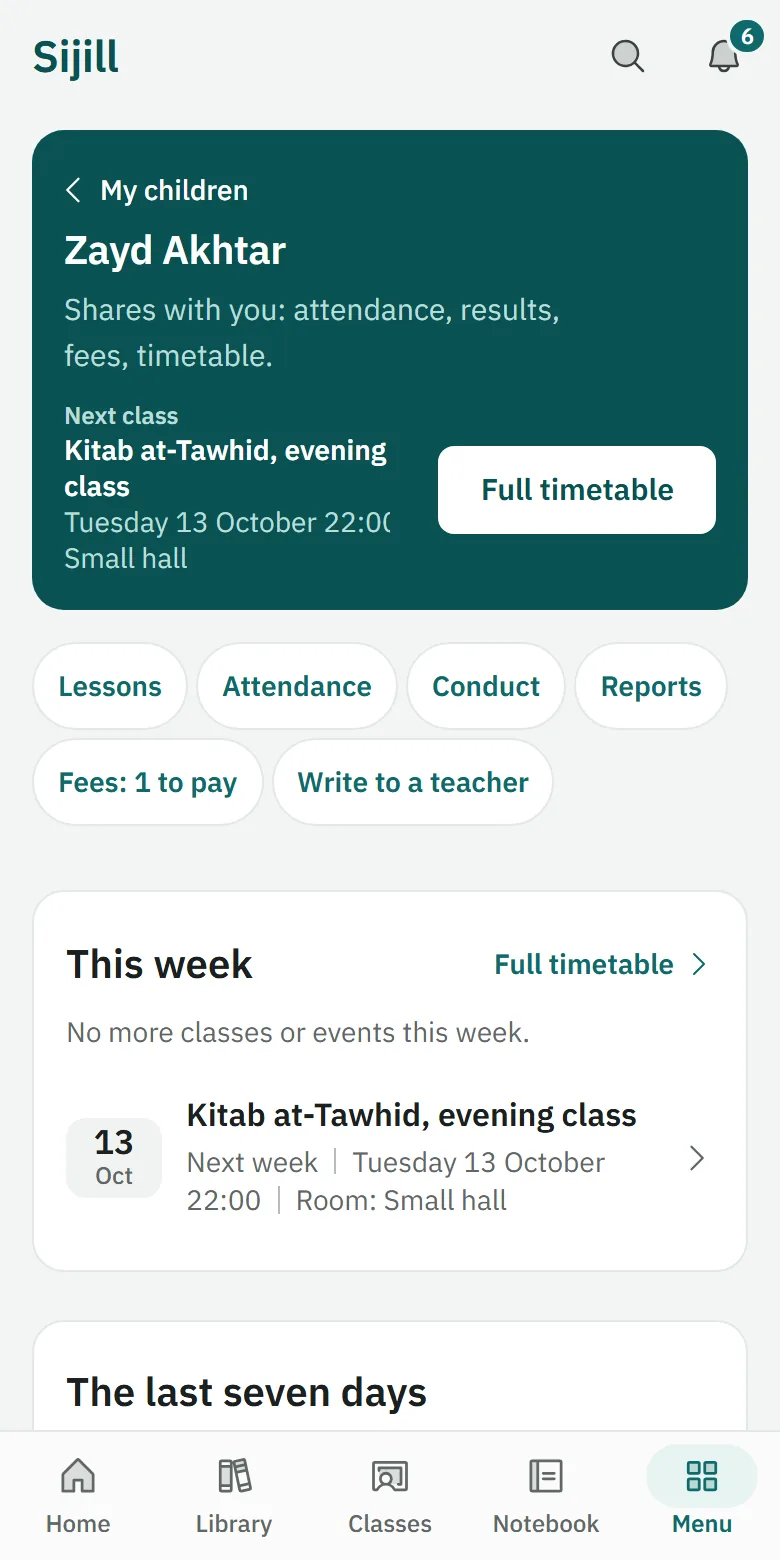
Follow a student's progress, with their permission.
The student makes a code
The student opens Me, then Parents and guardians, makes a code and gives it to you.
Follow a student with their code
Enter the code to see what the student chose to share: attendance, results, feedback or fees.
The student stays in charge
The student can change what you see, or end the link, at any time, and you never see their notes.
Bring your teachers, classes and students together under one name.
Create an institute
Start an institute with its name, and you become its administrator.
Add members
Make a join code for each role, student or teacher, and send it to your group.
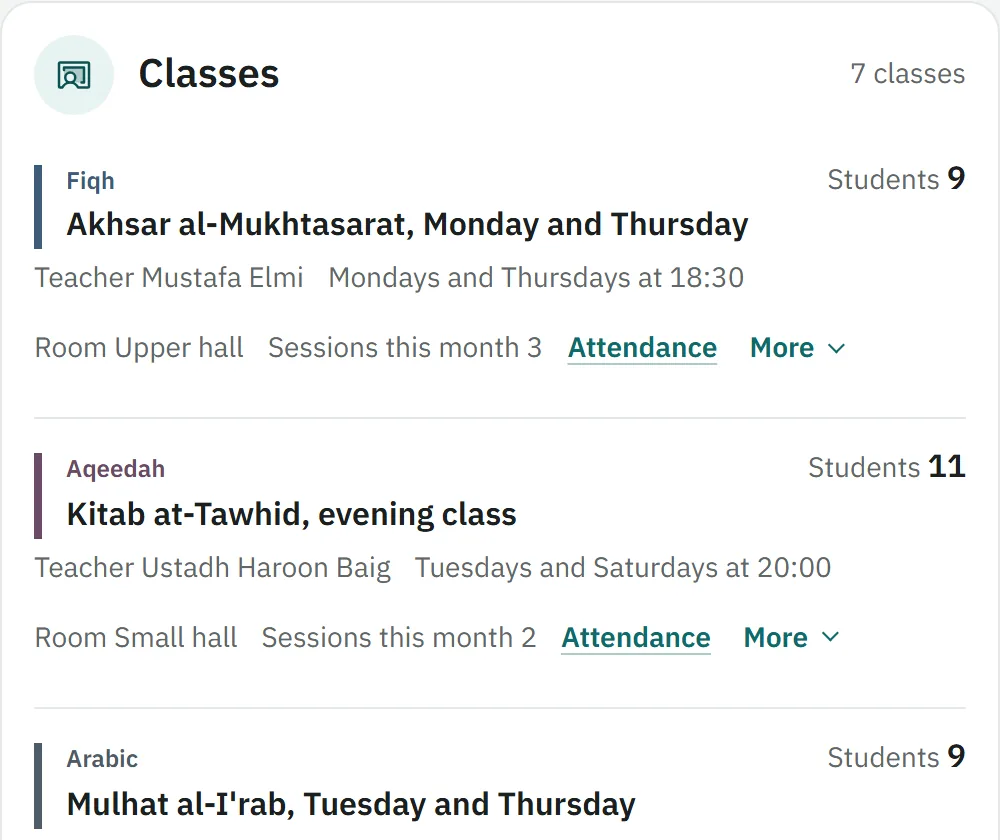
Keep one student list
See every student and enquiry with their stage, notes and follow-ups.
Fees and payments
Set fees, confirm what students paid and record a refund you gave.
More an institute can do
- Make cohortsInside the institute, open Students, then Cohorts; make a cohort for each group of students and add the classes they take.
- RemindersUnder Settings, then Reminders, switch on gentle reminders for classes and fees. They arrive as notices inside Sijill, and they start switched off.
- Post on the boardPost a course in the institute's name; it shows once an administrator approves it.
Getting set up
Two things that make Sijill easier to come back to.
- Put Sijill on your home screen
Steps for iPhone, iPad and Android.
- Take the tour again
A quick look round the main screens, in four stops.
Common questions
Is it free?
Starting a class, joining a class and the core of Sijill are free for students and teachers. Nothing in the core is locked behind payment. There are no adverts. Some teachers and institutes charge their own fees. Today Sijill only records payments that go straight to the teacher or the institute. Card payments are not connected yet. When they are, and a student pays a teacher or an institute through Sijill, Sijill will keep a small share: never more than 5 percent in all, the card company's fee included. Institutes pay to use Sijill. The price has not been decided yet.
Is my data private?
Your notes, questions and revision are yours alone unless you choose to share them. There are no adverts, no analytics and no tracking. The privacy policy says exactly who sees what.
What does the AI do?
Nothing yet: the AI helper is not switched on. When it is, it will work as a librarian: it will search only what you have saved and hand it back with its sources. It will not issue rulings, speak for a scholar, or answer from general knowledge.
Who checks the books?
The library's texts are copied from the sources named on each book's page, and readers are checking them. If you find a mistake, report it from the reading page or from the book's page, and your report goes to the people who look after the library.
Can I use it offline?
Yes, for reading, where a book's licence allows a copy on your device. Open the book and choose Save for offline reading, and it opens on that device without a connection. Saved books stay on that device only and are wiped when you sign out.
How do I delete my account?
Open Me, then Security and privacy, then Delete account. Everything that belongs to you is removed straight away. Fees you paid stay with your teacher or institute as their record, with your name only. If you want a copy first, download your data from the same screen.